
Jump to content

  • Popular Post

How to Use Custom DLC (CDLC) on Mac (2023 Update)


The following instructions are for Rocksmith 2014 Remastered, with the latest update installed.  These instructions may not work for older versions or pirated versions of the game, and I will provide no support for pirated versions.  Please buy the game and support the developer.  Without the game, we would have nothing to play customs with anyway.

Download the patch here : https://github.com/aik002/RSBypass/releases/download/1.8pre2/RSBypass.zip

Video instruction :

To convert PC customs to Mac version :

https://github.com/glebb/rocksmithconvert/releases/download/2.2.0/RSConvert_GUI-2.2.zip


Here are all the steps (read them carefully) :

  • Your user account needs to be an Administrator account.
  • Download the Rocksmith Patch:  https://github.com/aik002/RSBypass/releases/download/1.8pre2/RSBypass.zip
  • Unzip the patch file and double-click on "RUN_PATCH_RS.command" to run the patch.  This will patch the Rocksmith 2014 app file to allow cDLC's to work.   **If you encounter a permissions error, see the note below**
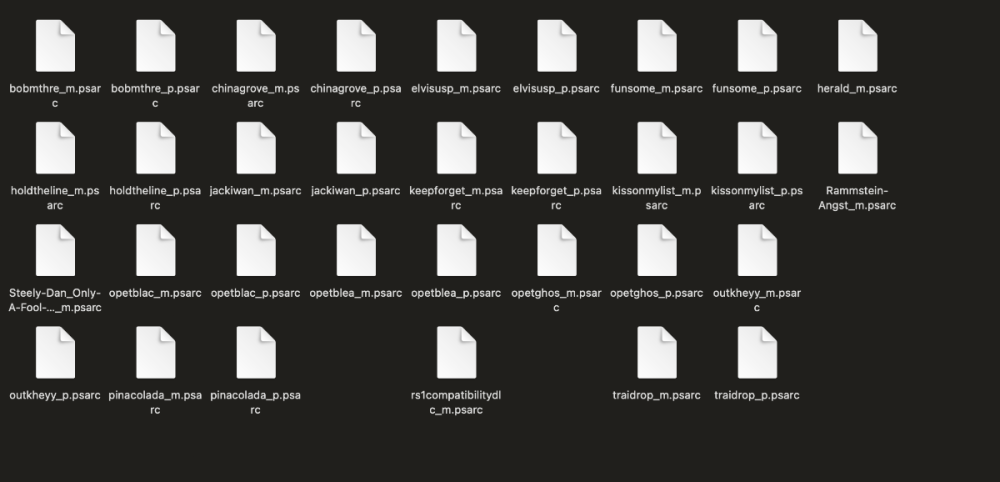
  • Download the customs you want. Make sure they end in "_m.psarc". If they end in "_p.psarc" they are PC only versions and will need to be converted with the Toolkit. I'll put instructions for that down below.
  • Place the customs in the dlc folder. The location is: ~/Library/Application Support/Steam/SteamApps/common/Rocksmith2014  
    • It is a hidden folder, so the easiest way to find it is to open Finder, and using the "Go" menu, select "Go To Folder" and paste the location in there. You can then drag the dlc folder to your sidebar to create a permanent link.
    • You can also find the folder by opening Steam and going to your games library and right-clicking on Rocksmith 2014, and choosing "Properties".  Select the "Local Files" tab and click on "Browse Local Files"
  • Launch Rocksmith 2014 by either opening Steam and running it from "Library", or launch it from the Mac Launchpad by clicking on "Rocksmith 2014"
  • Say goodbye to your family, friends, and free time. You won't be seeing any of them for a while.


**If you encounter a permissions error while running the patch:

  1. Right-click on the patch and select "Get Info"
  2. Under "Sharing & Permissions", make sure that all users listed have "Read & Write" permissions.
  3. If they do not, click the small lock icon in the bottom right corner to allow the permissions to be changed, and enter your Admin password.  Then select each user that needs to be changed and alter the permissions.
  4. Repeat for the other two files needed for the patch ("insert_dylib" and "libRYBypass.dylib")


Updated 2023/11/01, confirmed to work until Sonoma OS.

  • Replies 594
  • Views 340.7k
  • Created
  • Last Reply

Top Posters In This Topic

Most Popular Posts

  • Hey everyone! I am happy to announce that we have a fix! This zip includes the patcher: https://github.com/aik002/RSBypass/releases/tag/1.0 Thanks to help from someone on Discord we found th

  • @Zero_black_zero  For anyone with Mac 64 bit Rocksmith 2014 Remastered issues.  Here's what to do: 1) Uninstall Rocksmith.  Make sure you DELETE the steam folder/files under application support when

  • I cloned the dylib patch source code from GitHub and compiled for M1 and Monterey. Memory mapping and protection work differently on M1 and I don't have an M1 Mac (yet) so it is hard to develop for it

Posted Images

Featured Replies

  • 2 weeks later...
On 12/20/2021 at 3:30 PM, blueshabs said:

Applied.  Seemed to run in terminal, however, still freezing on amps screen.

Same.  When I start the song and the amps drop it freezes

On 12/21/2021 at 9:37 AM, flapjack89 said:

@ DasFohlen I've just tested:

Monterey on M1 Mac Mini 16GB: Works!! Amazing, thank you so much!

Catalina on an Intel machine: Does not work, crashes with the same sort of error as the old patch does on M1 with Monterey.

@ blueshabs To get this new patch to work I had steam validate Rocksmith to return it to stock, then run the new patch. In order to run the new patch I had to remove the apple quarantine from the "untrusted" files in the patch...

If you extracted RSBypass.zip in your Downloads folder, then from a Terminal window do:

cd ~/Downloads
xattr -r -d com.apple.quarantine RSBypass

Then run RUN_PATCH_RS.command.

Been trying to make it work for hours on my Monterey M1 Mac. This worked!!!! Thanks mate

  • 1 month later...

Anyone else having problem? 
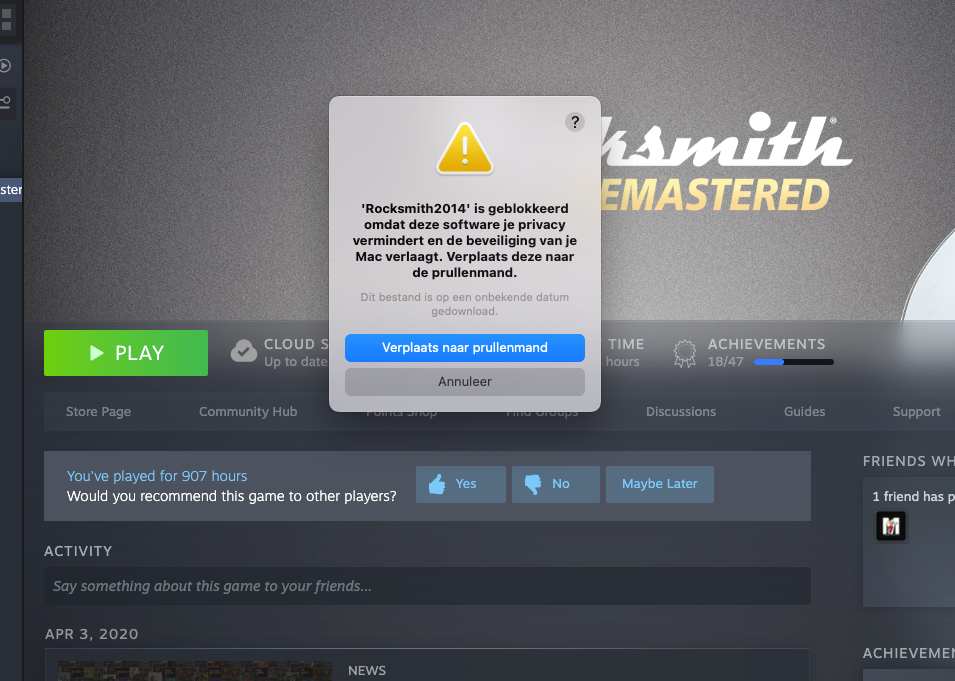
When i start up the patched rocksmith it won't open and there is a mac popup saying it won't open it because of privacy issues -> quit or remove to trash bin :s

1218135807_Schermafbeelding2022-04-02om11_52_09.png.a3fda4eb1a3547d4fb294471088e03d3.png

  • 4 weeks later...

Hi, I can see that the RSBypass patch has an update on GitHub, anyone tried yet on M1 Monterrey? 

I am running a new Mac Studio (M1) on Monterey 12.3.1 and have used the 1.5 command fix release. All is working perfectly!

So I've been trying unsuccessfully for several days to get this working again.  Macbook pro Intel based Monterey 12.3.1

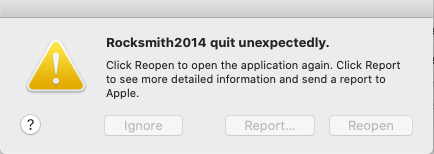
removed all the old tools, removed Rocksmith and reinstalled it.  Worked my way through all the  permissions issues, got the new patch from github 1.5.  run the patch, it runs fine, no warnings, errors, but as soon as I start rocksmith it crashes with a desktop warning that it quit unexpectedly.  Not sure what I'm doing wrong.

4 hours ago, merlinx4 said:

So I've been trying unsuccessfully for several days to get this working again.  Macbook pro Intel based Monterey 12.3.1

removed all the old tools, removed Rocksmith and reinstalled it.  Worked my way through all the  permissions issues, got the new patch from github 1.5.  run the patch, it runs fine, no warnings, errors, but as soon as I start rocksmith it crashes with a desktop warning that it quit unexpectedly.  Not sure what I'm doing wrong.

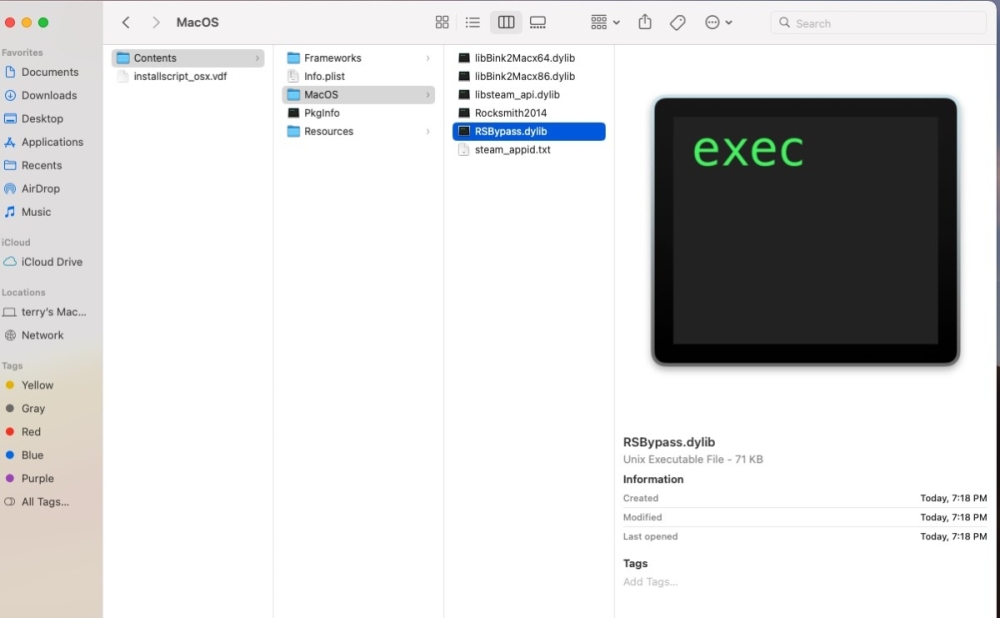
tried again just now, the .app has the macos folder and what appears to be the correct file?

Screenshot 2022-05-10 192546.jpg

On 5/18/2022 at 3:03 PM, hoydudu said:

Runs perfectly on m1 macbook pro 12.3.1 monterey.

Oh my God, now its running.......... thx soooooo much to all people who are working and responding on our problems with this cdlc troubles........ thx


  • 2 weeks later...

on macOS Monterey (v12.3.1), I needed to do some additional steps in order to run the Rocksmith Patch. 

By default, my terminal didn't have permissions to execute `insert_dylib` and `libRSBypass.dylib`, so I kept getting an error when trying to run `RUN_RS_PATCH.command`. Modifying the permissions via the Get Info menu recommended in the guide didn't work for me. 

I needed to enable the Terminal to run local, non-verified files. To enable this, I went to System Preferences -> Security and Privacy -> General Pane -> Developer Tools -> Unlock by Clicking lock icon in bottom left of window -> Check Terminal (or add it to the list if its not there)


Once I did that and double clicked the `RUN_PATCH_RS.command`, it had permissions to execute the other two files and install the patch correctly.

  • 2 weeks later...
On 6/1/2022 at 4:08 AM, Hikikomori said:

pretty sure the latest version already covers it but double check in the discord channel for #mac-os  for additional information on terminal use that is required as well

No, it doesn't cover unfortunately.

After patching, Rocksmith doesn't start anymore. May be it's touched  only me? If some one can write step by step instruction I will appreciate it!

  • Moderator
On 6/14/2022 at 2:15 PM, chebor said:

No, it doesn't cover unfortunately.

After patching, Rocksmith doesn't start anymore. May be it's touched  only me? If some one can write step by step instruction I will appreciate it!

yup theres instructions on the discord with a video even, and instructions pinned for terminal commands that are needed.

  • 1 month later...
On 1/11/2022 at 8:48 AM, Limpy_Harries said:

Cup of coffee sent to DasFohlen for sorting this out ! 

Thank you 🙏 

just did the same - wished i could do more!

  • 1 month later...

I just upgraded my iMac 2021 (M1) from Monterey 12.3 to 12.5 😢😅

Because I have tried so many times for the CDLC patches and it didn’t work. It either crashes or CDLC doesn’t play in the game.

Tonight I’m gonna test it out for the latest patch fix. 
 

@ DasFohlen  dear DasFohlen, may I know if there’re any new patches that work with latest Monterey?

@ Pineapple88  and everyone else - this video I made shows how to properly install the patch and the description has a link to the GitHub where you can always find the latest patch. The current version is 1.6. 


  • 1 month later...
On 5/27/2022 at 6:06 PM, sneakycrow said:

on macOS Monterey (v12.3.1), I needed to do some additional steps in order to run the Rocksmith Patch. 

By default, my terminal didn't have permissions to execute `insert_dylib` and `libRSBypass.dylib`, so I kept getting an error when trying to run `RUN_RS_PATCH.command`. Modifying the permissions via the Get Info menu recommended in the guide didn't work for me. 

I needed to enable the Terminal to run local, non-verified files. To enable this, I went to System Preferences -> Security and Privacy -> General Pane -> Developer Tools -> Unlock by Clicking lock icon in bottom left of window -> Check Terminal (or add it to the list if its not there)

Once I did that and double clicked the `RUN_PATCH_RS.command`, it had permissions to execute the other two files and install the patch correctly.

I don't see the Developer Tools option. I'm having trouble with the latest version of the game on Monterrey as well. "..Contents/MacOS does not exist" and "..Contents/MacOS/Rocksmith2014: No such file or directory"

I double checked the location and it's exactly correct. Rocksmith will load the CLDCs, but just show the amps and not allow me to exit. Any hints?

Thank you.

OK, I finally got it. My path name had a space in it, which in terminal is represented as a "\ " but in the script it did not need the backslash. I tried just copying ibRSBypass.dylib manually to the MacOS folder, but I guess the script does more than that. This is all with the very latest version of the game and v1.6 of the patch. I also have the "InCaseWeNeedIt" beta option enabled, if that has anything to do with it. 

Now to try converting some Pavement to Mac versions!

  • 3 weeks later...
On 10/4/2022 at 2:41 PM, electrorocket said:

I don't see the Developer Tools option. I'm having trouble with the latest version of the game on Monterrey as well. "..Contents/MacOS does not exist" and "..Contents/MacOS/Rocksmith2014: No such file or directory"

I double checked the location and it's exactly correct. Rocksmith will load the CLDCs, but just show the amps and not allow me to exit. Any hints?

Thank you.

Ok so the above poster is correct but their directions are incorrect in one part. It's not under the "GENERAL" Tab - it IS inside Security & Privacy - BUT it is under PRIVACY tab.


Go there, scroll down the list and find Developer Tools. It's third from the bottom right above Analytics and Improvements and Apple Advertising. 

In the right side window click the checkmark for "Terminal" and you should be able to run the script. 

I had tried EVERYTHING before this and this was what fixed my issue for me. 


After checking the box next to Terminal I was able to run the script and it made the modifications and my CLDC all works now. 


The people creating the patches probably don't notice this as they have "terminal" checked by default from the projects they're working on is my guess. 

Either way happy it's working again. Using 1.6 RSBypass. on M1 MacBook Pro 2021

Join the conversation

You can post now and register later. If you have an account, sign in now to post with your account.

Guest
Unfortunately, your content contains terms that we do not allow. Please edit your content to remove the highlighted words below.
Reply to this topic...

Recently Browsing 0

  • No registered users viewing this page.


Important Information

By using this site, you agree to our Guidelines. We have placed cookies on your device to help make this website better. You can adjust your cookie settings, otherwise we'll assume you're okay to continue. - Privacy Policy

Configure browser push notifications

Chrome (Android)
  1. Tap the lock icon next to the address bar.
  2. Tap Permissions → Notifications.
  3. Adjust your preference.
Chrome (Desktop)
  1. Click the padlock icon in the address bar.
  2. Select Site settings.
  3. Find Notifications and adjust your preference.